Key takeaways
- Toads is our pick for an integrated Mac editing workflow. It costs $99 once, with a seven-day trial advertised on its website; MCP requires the direct-download edition.
- CleanShot X belongs on a modern video shortlist. Its Studio Mode includes a native video editor, so comparing it as a capture-only utility would miss a substantial part of the product.
- Screen Studio suits presentation-focused product recordings. Check its current checkout price rather than relying on an old subscription or lifetime price from another roundup.
- OBS Studio is the free choice for scene-based production. It gives you substantial control over sources and live output, with a different setup process from a focused Mac demo recorder.
- Check requirements at the feature level. Toads supports macOS 15 and later, but captions require macOS 26 or later and the relevant Apple Speech assets.
Use the comparison checklist before paying. If finding existing screenshots is your actual problem, start with our Mac screenshot tools guide.
What a Mac screen recorder actually is (and what it is not)
A Mac screen recorder captures moving activity from a display, window, or selected area and saves it as video. Depending on the app and permissions, it can also record a microphone, computer audio, and a camera. That makes it useful for walkthroughs, bug reports, lessons, and product launches, where a sequence of actions communicates more than a static image.
Recording and editing are separate jobs. Capture creates the footage; editing removes mistakes, changes pacing, adds emphasis, and prepares the result for its destination. Some recorders include a timeline and presentation tools. Others concentrate on mixing sources during recording or broadcasting. An attractive recording interface does not, by itself, tell you how much work remains after capture.
A screenshot organizer serves another purpose: finding and reusing still images you have already saved. A video meeting platform adds calls and collaboration. Neither is automatically a substitute for a local recorder, although your workflow may need more than one category.
Start with the output you need. A quick internal explanation may only require a clear capture and a trim. A public product demo may need camera framing, readable cursor movement, captions, and several clips. A livestream may need scenes and audio routing. The right shortlist follows that job, your Mac’s operating system, and the way you prefer to edit.
How we ranked these Mac screen recorders
This is a workflow shortlist, not a scored performance test. We build Toads, so we have first-hand product knowledge; we checked competitors’ official documentation on October 23, 2026. We did not run comparative export-speed, battery, or image-quality benchmarks.
We used five criteria that a buyer can check:
- Capture inputs: display, window, region, microphone, system audio, and camera where documented.
- Editing path: whether cuts, clip arrangement, zooms, and presentation changes happen inside the recorder or require another editor.
- Cost structure: upfront price, recurring charges, trial terms, and update renewals where published.
- Compatibility: the stated macOS requirement and any stricter requirement for individual features.
- Automation and control: documented assistant access, permission boundaries, or scene-based production controls.
Toads leads for recording a Mac demo and continuing into editing, with optional assistant help. Another use case can produce a different winner. We have omitted review scores, customer counts, and time-saved claims because we do not have a comparable, verified dataset for all four products.
The best Mac screen recorders in 2026
These four options cover different recording habits. Choose an editing workflow first, then compare the license and system requirements. The order reflects fit for the native product-demo workflow described above. It is not a claim that one app wins every kind of recording.
1. Toads, best for native recording and editing with optional MCP assistance
Toads brings display, window, and region recording into a native Mac editor. You can capture microphone audio, system audio, and a camera, then trim, split, and reorder clips. Zooms, cursor styling, layouts, backgrounds, and exports belong to the same workflow, which makes it a sensible starting point when the recording is raw material for a finished demo.
The website lists $99 once and a seven-day trial. Exports include MP4, MOV, and GIF, with video support up to 4K at 60 fps. The app requires macOS 15 or later; captions and transcript-based cuts require macOS 26 or later and Apple Speech language assets. Check these requirements before planning a caption-dependent workflow.
The distinctive option is the MCP connection, available in the direct-download edition, not the Mac App Store edition. It lets a supported assistant work with approved projects and edits. Claude is documented; compatibility with another MCP client should be checked rather than assumed. Originals remain on your Mac, but context shared with an assistant can reach that assistant’s AI provider. Project access and recording permissions are separate decisions.
Best suited for: Founders, educators, and product teams who want to finish a recording inside one Mac app. Choose the direct-download edition when assistant editing is part of the buying decision.
2. CleanShot X, best for screenshots and video in the same toolkit
CleanShot X is worth considering when still captures and recordings arrive in the same working day. Its screenshot tools include annotation and scrolling capture, while its screen-recording tools now include Studio Mode, a native editor with zooms, cursor treatment, and backgrounds. Older comparisons that treat it only as a quick recorder are incomplete.
The pricing page lists Basic at $35 once, including one year of updates. Continuing updates are an optional $19 per year. Pro is listed at $10 per user per month, billed annually, with expanded cloud and team features. The published requirement is macOS 13 or later. Compare both the editing workflow and the sharing plan you actually need before treating the upfront price as the whole decision.
Our reason to shortlist it is the mixed workload. When a bug report needs an annotated still and a short video, keeping both tools close together may be more useful than choosing an app around video alone. That is a fit assessment, not a measured speed advantage. We have not independently benchmarked its editor against Toads.
Best suited for: People who regularly alternate between screenshots, annotations, and screen recordings. Consider the cloud plans separately if hosted sharing or team features influence your choice.
3. Screen Studio, best for presentation-focused product demos
Screen Studio centers its recording workflow on polished Mac demonstrations. Its published feature set includes automatic zooms, cursor presentation, camera framing, and controls for how the captured screen appears in the finished video. Those are relevant when viewers need help following a small interface rather than simply seeing everything that happened on the desktop.
The website recommends macOS 13.1 or later. Screen Studio is paid software; consult the current pricing and checkout on its homepage for the available license terms. We have not reproduced an old dollar figure because we could not verify a current price from the public page used for this review. Resolve that uncertainty before purchase rather than relying on a remembered promotion.
For evaluation, make a short recording of your actual app. Include a menu, a scroll, and small text, then watch the result at its intended viewing size. Decide whether the automatic emphasis supports the explanation and whether you can adjust it when needed. This is our suggested buyer test, not a claim that we ran a comparative trial or found a defect.
Best suited for: Creators and product marketers who value the presentation of a screen demonstration. Compare the live license terms and your preferred editing interaction before committing.
4. OBS Studio, best for free recording, scenes, and streaming
OBS Studio is free, open-source software for recording and live production. Its scenes can combine multiple sources, with audio mixing, filters, and transitions. Current Mac downloads require macOS 13 or later. It is a useful option when the recording setup itself needs more control than a single captured window.
The official quick-start guide walks through configuration, scenes, sources, and a test recording. That setup is part of the buying decision even though the license costs nothing. A reusable scene arrangement can be valuable for recurring broadcasts; a person who only needs a short demo may prefer a smaller capture-to-edit workflow.
Think about what happens after recording. OBS’s scene and source controls handle production during capture; they are not a substitute for a conventional post-production timeline when you need to rearrange recorded clips. Budget for an additional editor if that is central to the job. We have not measured the total setup or editing time for these alternatives.
Best suited for: Streamers, presenters, and people who want substantial control over live sources without a software license fee. Choose it when scenes and mixing matter more than finishing a product demo inside the recorder.
Side-by-side comparison
We compare purchase structure, compatibility, and workflow rather than assigning unsupported quality scores. US dollar prices were checked October 23, 2026; taxes, storefronts, and future changes can affect checkout.
| Product | Price / license | Mac requirement | Main reason to choose it |
|---|---|---|---|
| Toads | $99 once; seven-day website trial | macOS 15+; captions 26+ | Recording and timeline editing; MCP in direct-download edition |
| CleanShot X | Basic $35 once; optional $19/year updates. Pro $10/user/month billed annually | macOS 13+ | Screenshots, recording, and Studio Mode editing |
| Screen Studio | Paid; verify current homepage checkout | macOS 13.1+ recommended | Presentation-focused demos and automatic zooms |
| OBS Studio | Free and open source | macOS 13+ for current downloads | Scenes, source mixing, and streaming |
Which Mac screen recorder fits your use case?
| Use case | Start with | Check before choosing |
|---|---|---|
| Edited product demos | Toads | Mac compatibility, caption requirements, and export needs |
| Assistant-supported edits | Toads direct download | MCP client compatibility and permitted project context |
| Screenshots plus short videos | CleanShot X | Studio Mode workflow and any cloud sharing needs |
| Presentation-led launch videos | Screen Studio | Automatic zoom behavior and current license terms |
| Broadcasts with multiple sources | OBS Studio | Scene setup, audio routing, and post-production editor |
What a Toads editing workflow looks like
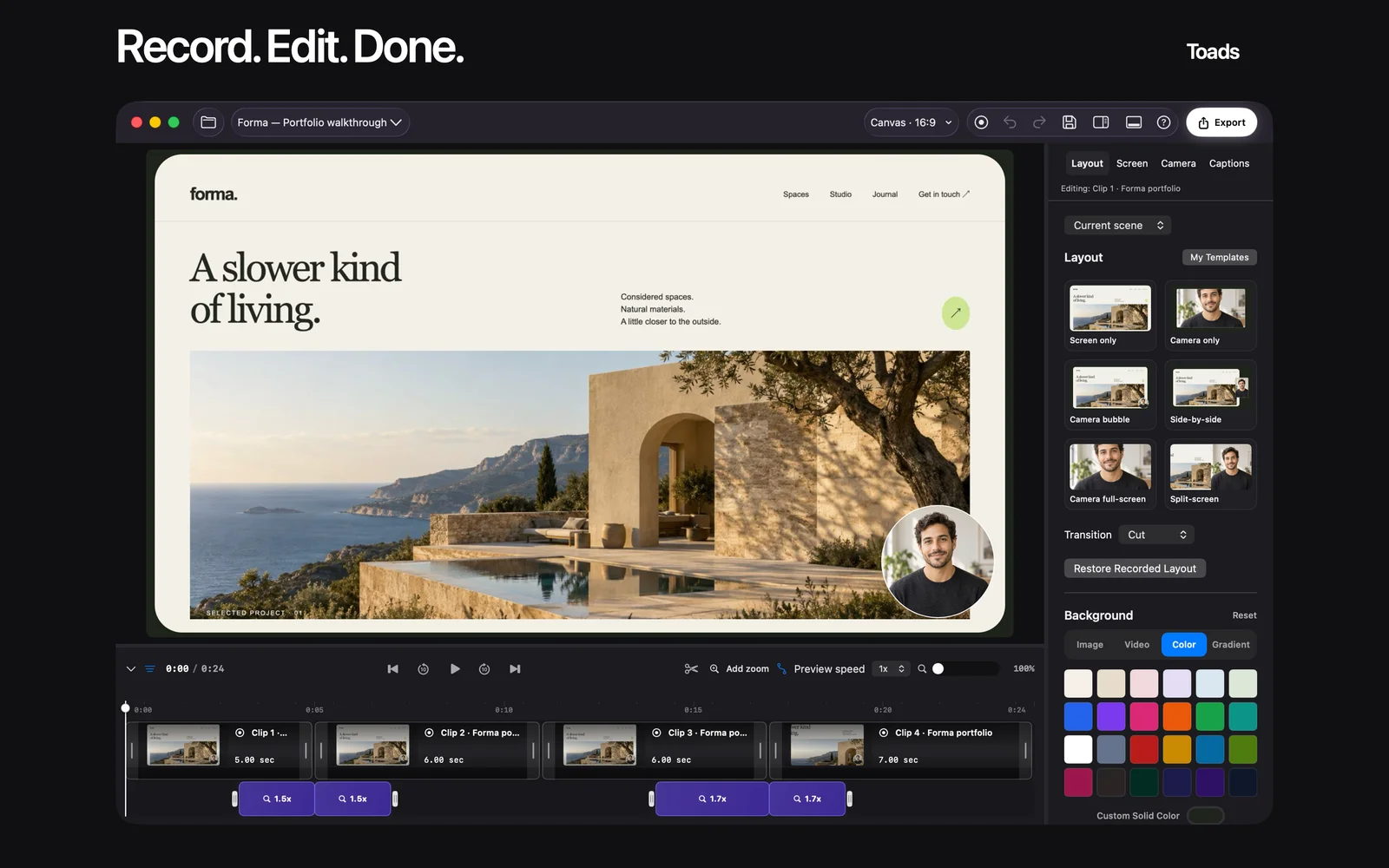
The product-tour image above shows a 24-second example project with four clips. It illustrates where clip arrangement, camera layout, preview, and export controls sit in the app. It is product evidence, not evidence that a customer saved a particular amount of time or increased sales.
A useful trial exercise is to record one task, remove one mistake, add one emphasis, and export the result. For assistant editing, repeat a small change through the documented MCP workflow after reviewing the access request. Compare the result with what you would comfortably publish. We do not have a measured customer case study to substitute for that evaluation.
Frequently asked questions
What is the best Mac screen recorder for product demos?
Our pick is Toads for recording and editing in one native workflow, with optional MCP assistance. Screen Studio and CleanShot X also deserve a look when presentation or a combined screenshot toolkit is the deciding factor.
How much does Toads cost?
The Toads website lists a $99 one-time purchase and a seven-day trial. Confirm the current offer and supported features at Toads before buying.
How does Toads MCP differ between download editions?
MCP is available in the direct-download edition and is not included in the Mac App Store edition. Check the supported client and project permissions before connecting an assistant.
What Mac do I need for Toads captions?
Toads runs on macOS 15 and later, but captions and transcript cuts require macOS 26 or later plus the relevant Apple Speech assets. A Mac that runs the recorder may therefore have different caption availability.
What is the best free starting point?
OBS is free and supports more involved recording setups. For a basic capture, Apple’s built-in screen-recording controls, opened with Shift–Command–5, may already cover your needs.
How should I compare video quality?
Record the same short task and inspect small text, cursor movement, camera framing, and audio at the intended export size. We have not published a controlled quality benchmark for these four apps.
What stays private when I use an assistant?
Toads keeps original recordings on your Mac, but an assistant may send approved frames, transcripts, filenames, or notes to its AI provider. Review what you share rather than assuming the assistant interaction is entirely local.
Try Toads on your next Mac recording
Start with a real task you need to explain. Record it, remove a mistake, and check the exported result. Use that small project to evaluate the editing workflow. If MCP matters to you, choose the direct-download edition and review its requirements. Check the current seven-day trial and license terms before continuing.
Explore Toads and its trial ↗Sources and review date
Checked October 23, 2026: Toads, Toads MCP, CleanShot recording, CleanShot pricing, Screen Studio, OBS, and the OBS quick-start guide. Competitor coverage is based on documentation, not independent comparative testing.